
SummaryNote for Notion
Connect once, then send in one tap. Choose the Notion page where your notes should go. Each note becomes a page with its summary and transcript.
First complete note freeNo card needed
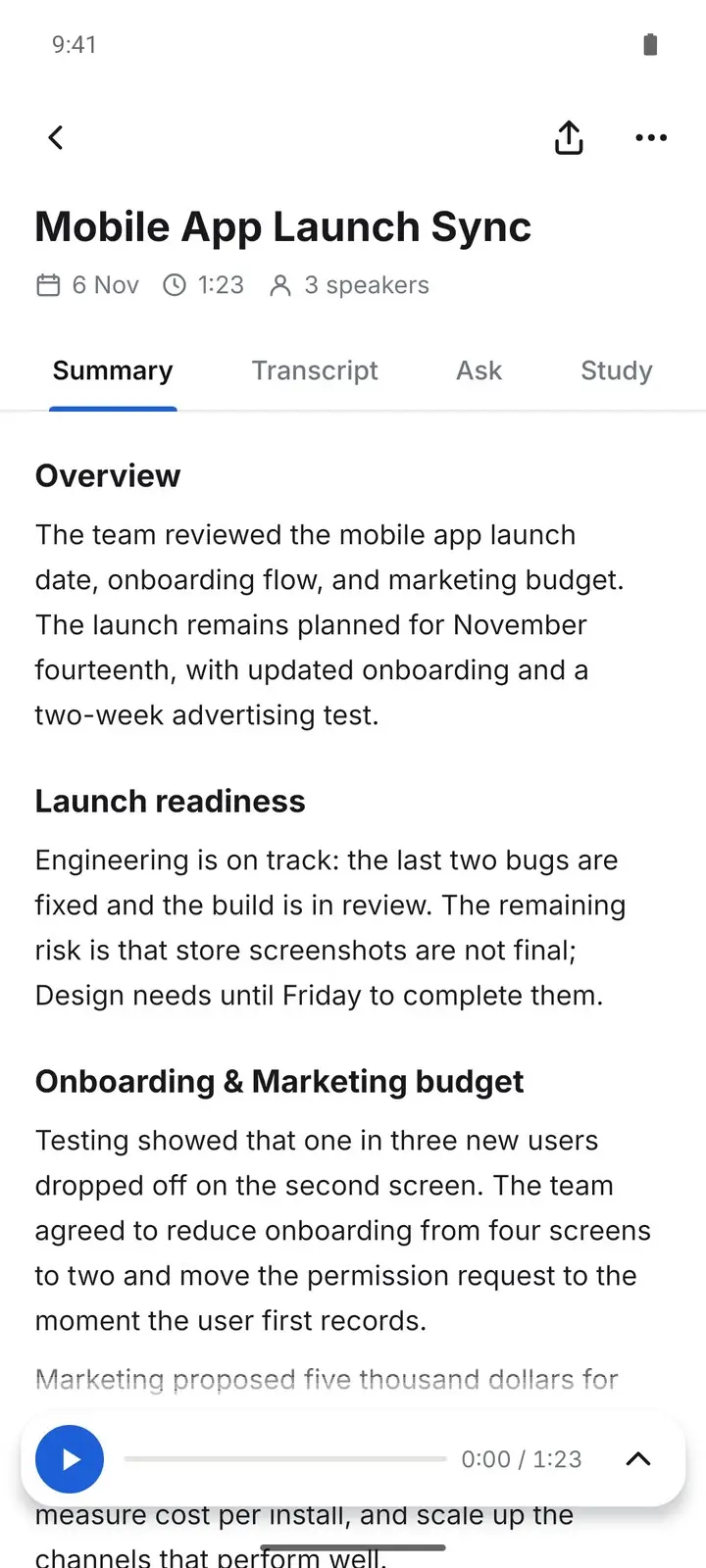
Connect once, then send in one tap
Choose the Notion page where your notes should go. Each note becomes a page with its summary and transcript.
Send to NotionSend a note to Notion in 3 steps
Choose a page
Choose a default page for your notes.
In the Android app, tap Send to Notion.
Thursday · Source: meeting recording
Summary- Review launch readiness
- Confirm onboarding changes
- Assign next steps
▸ Transcript
Each send creates a Notion page with the title, date, source, summary and transcript.
Keep your notes close to your work
Send when you choose
Send a note manually when it is ready. Notes do not sync automatically.
Keep the source
Review the summary alongside the transcript in Notion. Return to the transcript when you need the context behind a point.
Choose your destination
Pick a default Notion page for your notes. Each send creates a new page there.
What gets sent
- Title
- Date
- Source
- Summary, including headings, lists and emphasis
- Transcript
What stays in SummaryNote
Ask, flashcards and quiz remain in SummaryNote. Open the original note in the app to use them.
From the blog
How to write meeting minutes
What to record, a worked example and a checklist for minutes people read.
Read article →SummaryNote vs Notta (2026): Which AI Note Taker Fits You?
Compare transcription, meetings and study tools across both products.
Read article →Best Otter alternatives (2026)
Five Otter alternatives compared by platform, free plan, meeting bot and uploads.
Read article →Questions, answered
Who can send notes to Notion?
The Android app supports sending to Notion on Free and Pro.
Does it sync automatically?
No. Open a note and manually tap Send to Notion.
What does each send create?
Each send creates a new page with the title, date, source, summary and transcript.
Can I choose where notes go?
Yes. Connect Notion and choose a default page.
What happens if I disconnect?
Existing pages remain in Notion after you disconnect.
Bring your notes to Notion
Connect once, then send in one tap from the Android app.
